Docs sections
Search⌘KQuickstart
Five minutes: project → upload → publish → a link or a player on your site.
On this page
Before you begin
- Access to the dodocast console. We are opening it to our first partners — request access and we will email you a link to the console.
- A video file:
mp4,mov,mkv,webmoravi.
Note
The console is available in English and Russian. These guides use the English labels.
1. Create a project
A project is a folder for videos with shared access and appearance settings. Later you can build playlists, broadcasts and channels from videos in any of your projects.
- In the left menu, open Catalog → Projects.
Click New project, enter a name and click Create. The console switches to the new project right away.
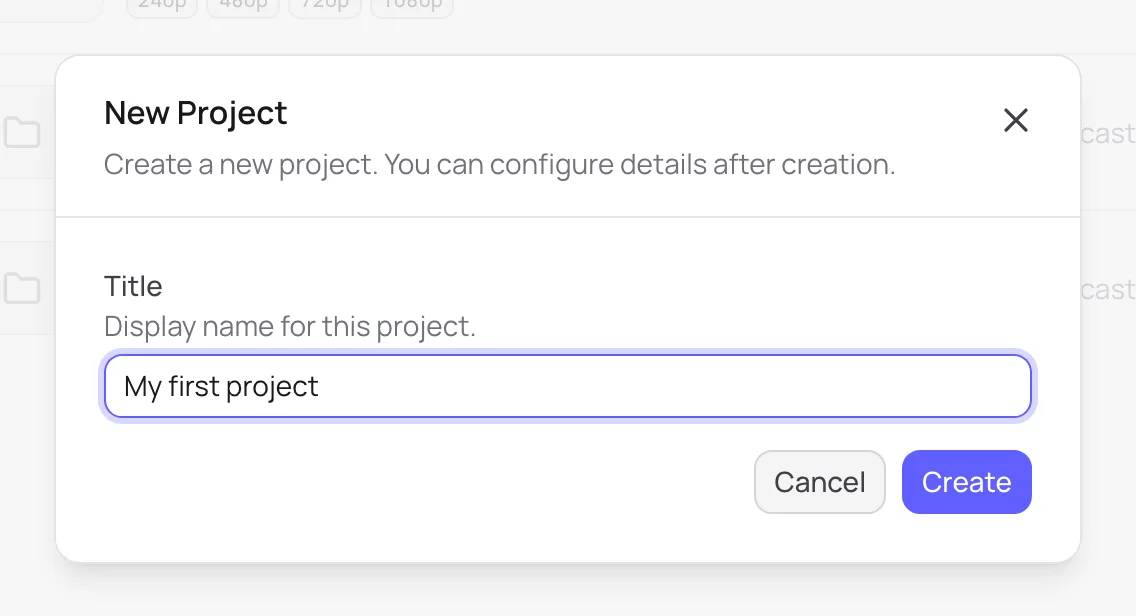
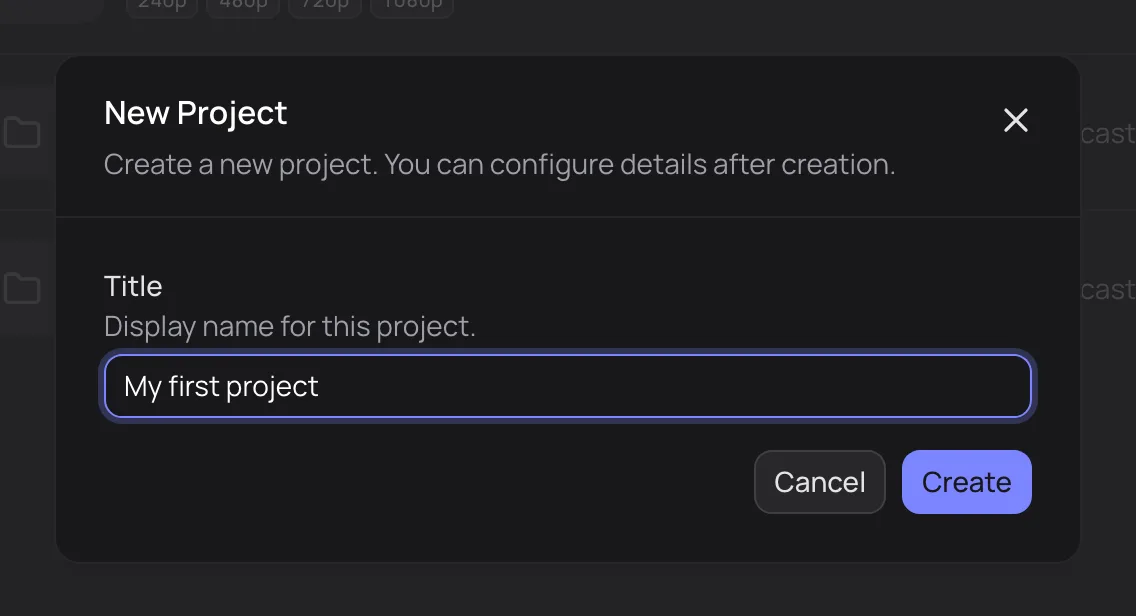
Catalog → Projects → New project
2. Upload a video
- In the left menu, in the project section, open Media.
- Click Upload in the top right and drag files into the Upload files dialog — you can add several at once.
Click Upload. A media item named after the file is created for each file.
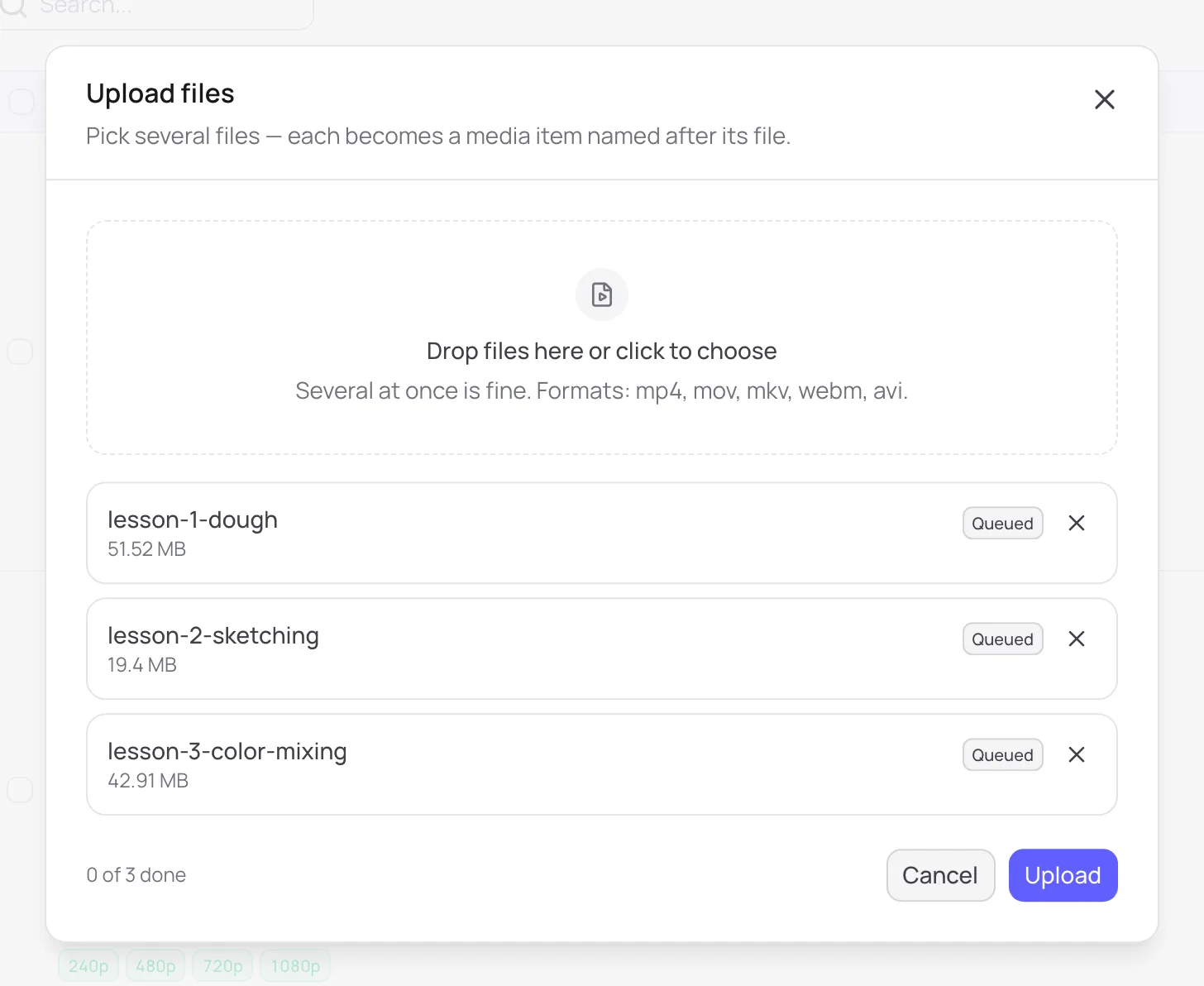
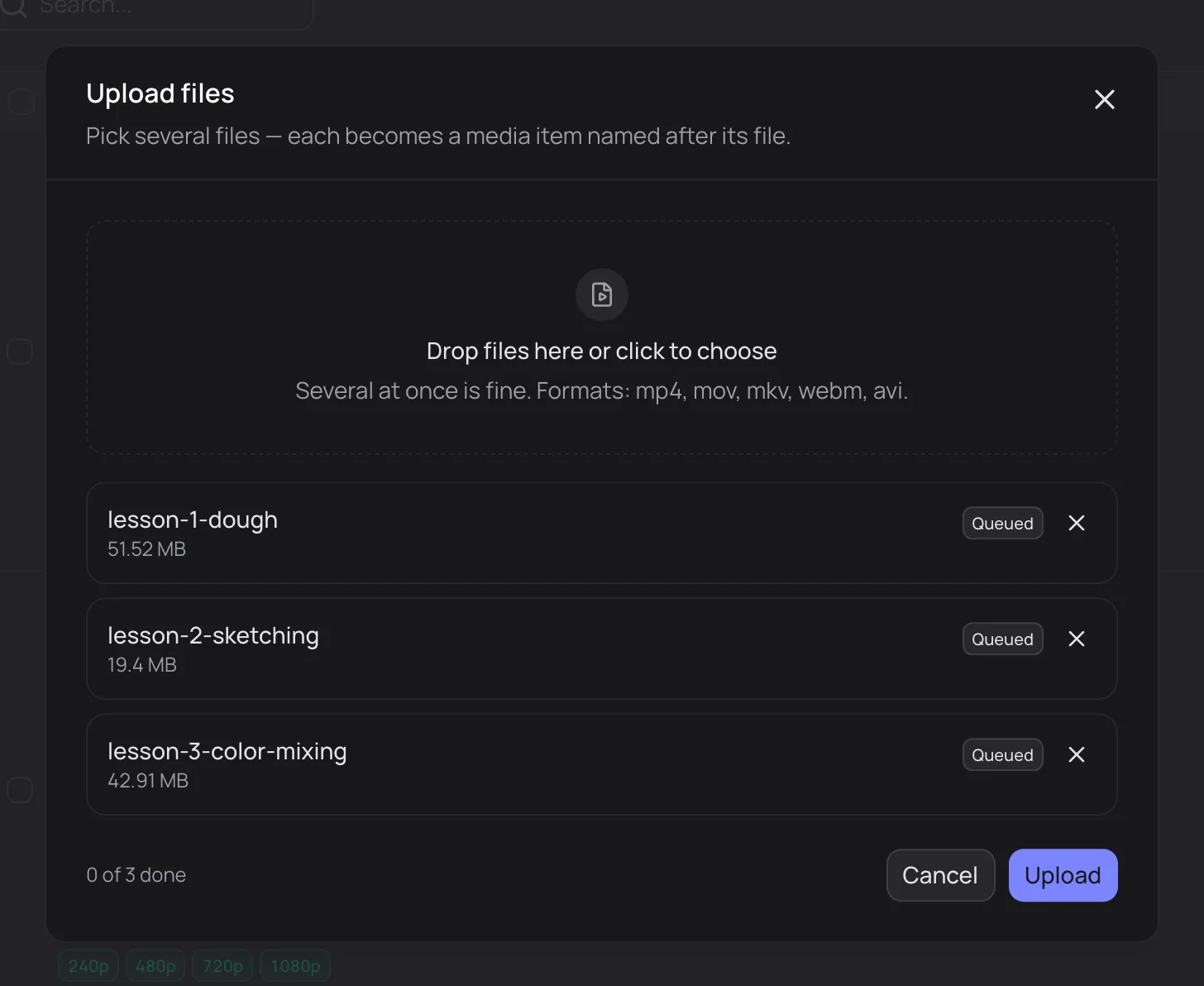
Files in the queue — just click Upload
After upload, the video is processed: dodocast prepares the qualities for adaptive streaming. You can watch it as soon as the first quality is ready; the rest are added automatically.
Tip
You can close the tab — processing runs on the server. If an upload is interrupted, the console offers to resume where it left off.
3. Check publishing and access
By default, a new media item is published right away and open to anyone with the link — unless your project or account settings say otherwise.
- Open the media item and go to the Content tab.
- In the Publication block, the Published on the storefront toggle controls whether the watch page is visible and embedding works. Turn it off if the video is not ready to show yet.
The Access policy line shows who can watch. To change it, click Configure access — the Access tab opens:
- Public — anyone with the link or the player on your site;
- Password — viewers enter a shared password;
- Private link — only people with the link containing the secret can watch.
Click Save changes.
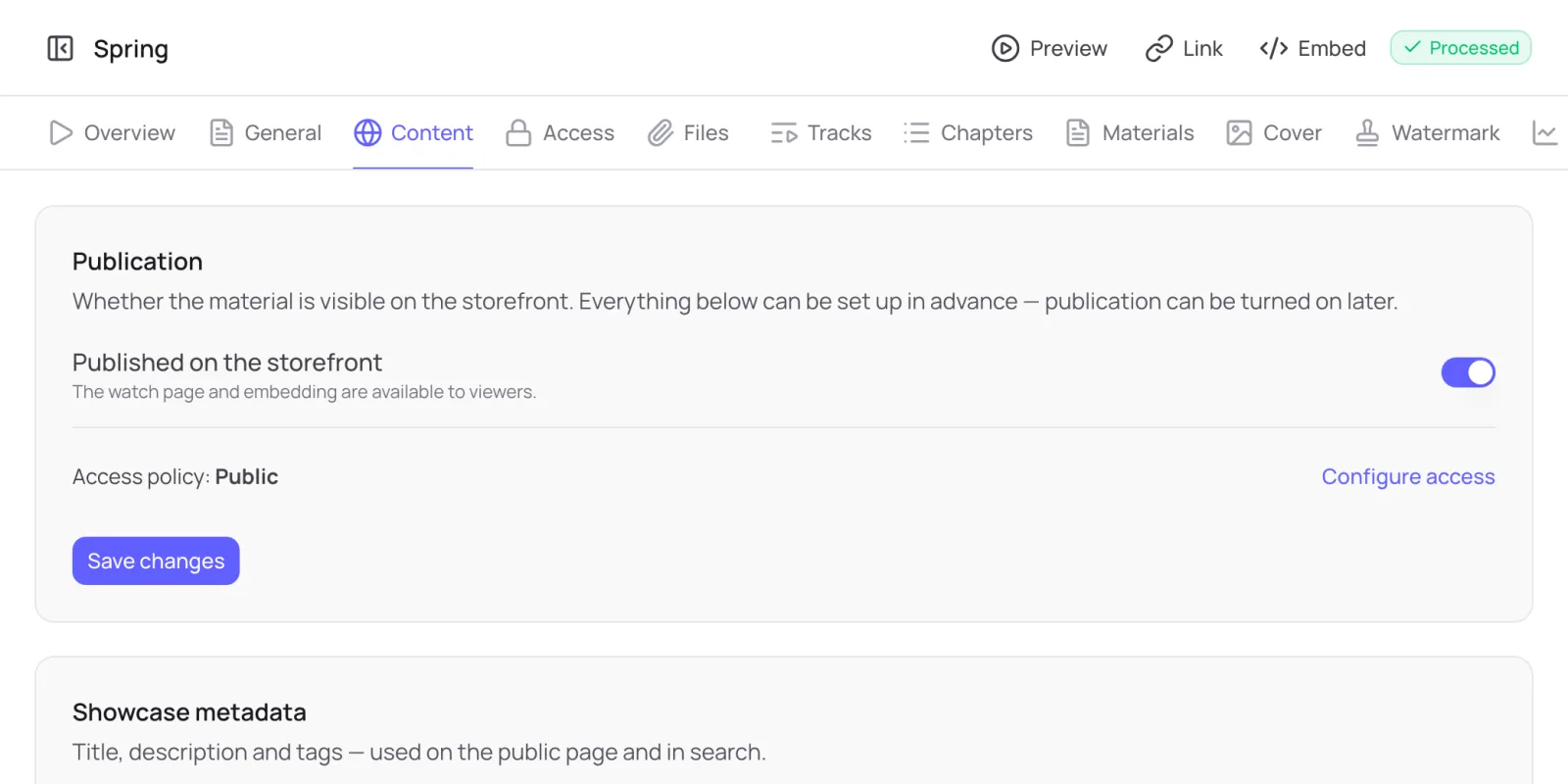
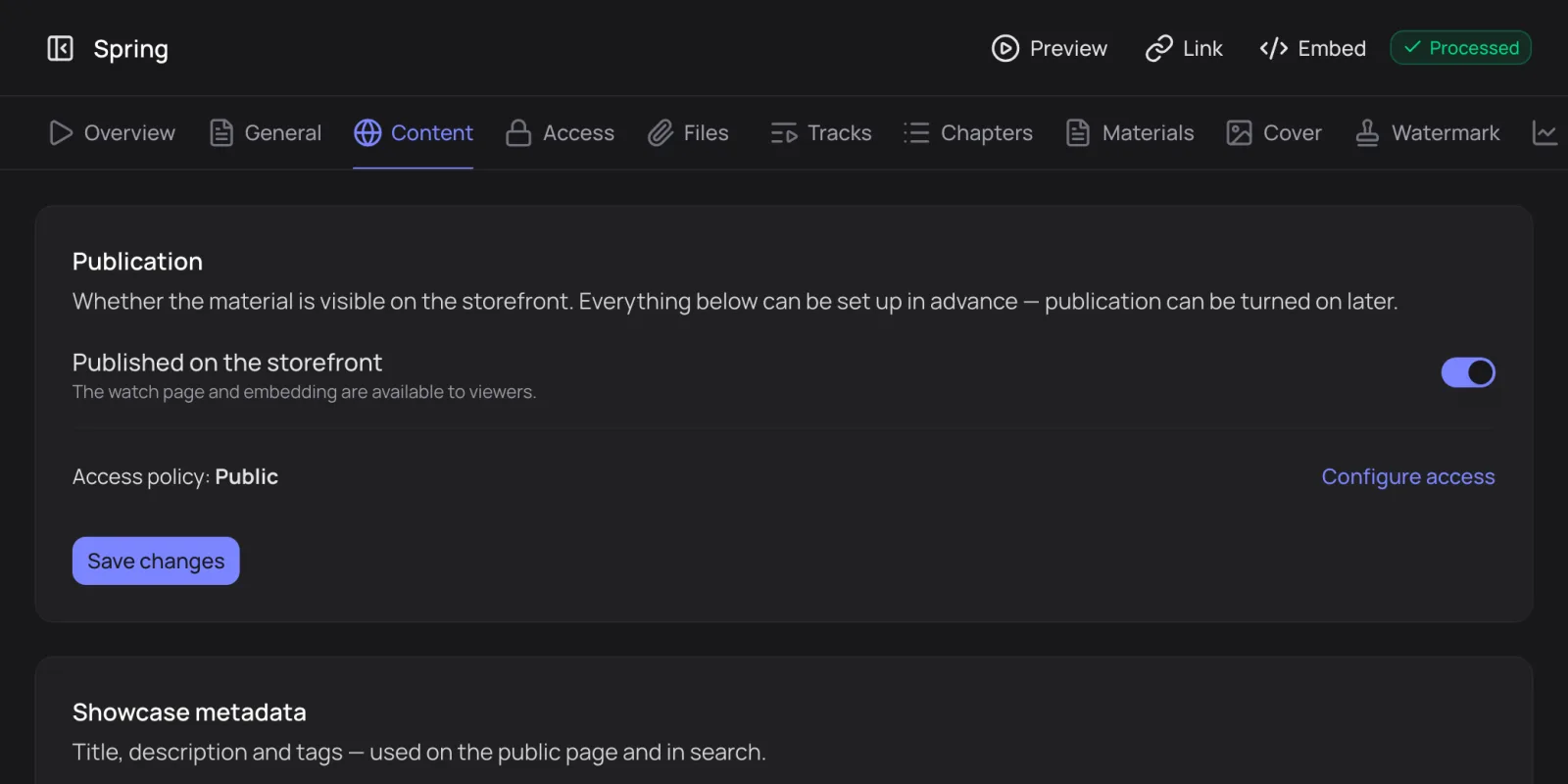
The Content tab. Video: Spring, © Blender Foundation, CC BY 4.0
4. Share
At the top of the media page there are three buttons: Preview, Link and Embed.
- Link — the watch page URL. Check Start at to open the video at a specific moment. Send the link to viewers or open it yourself.
- Embed — the player code for your site: responsive (by aspect ratio) or fixed size. Click Copy code and paste it into your page's HTML.
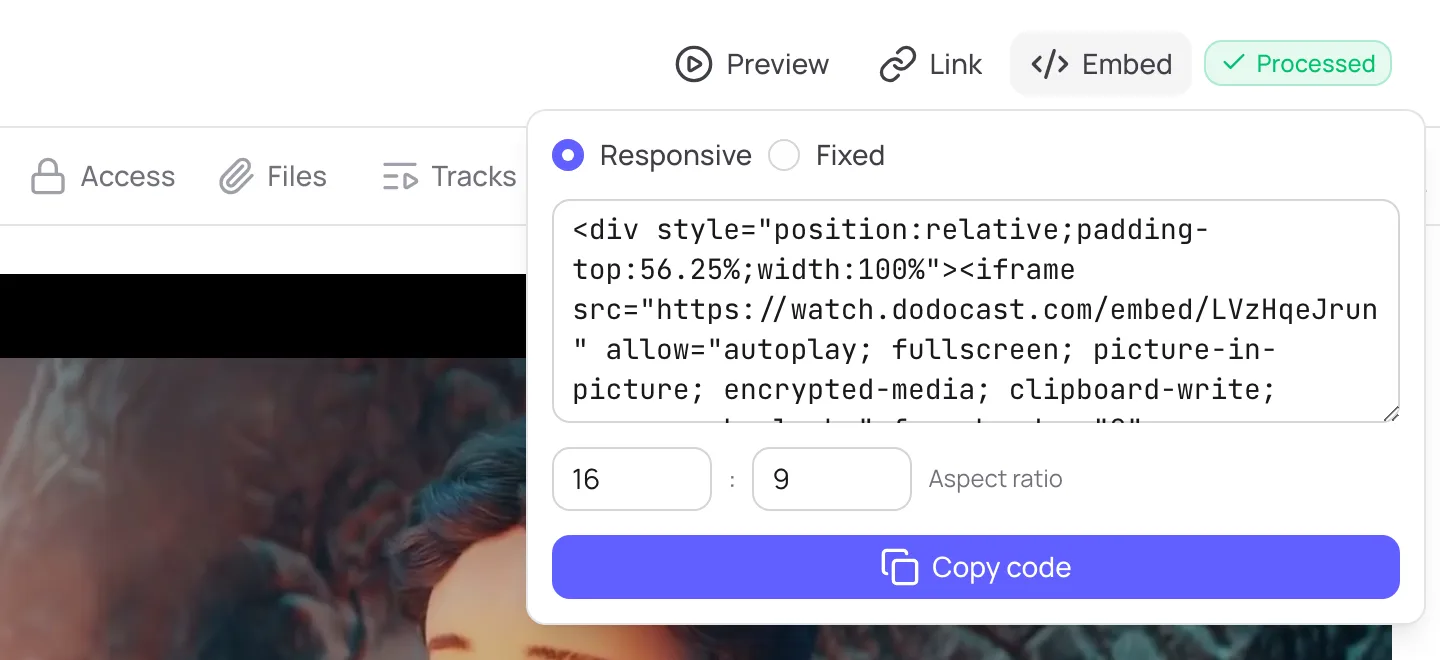
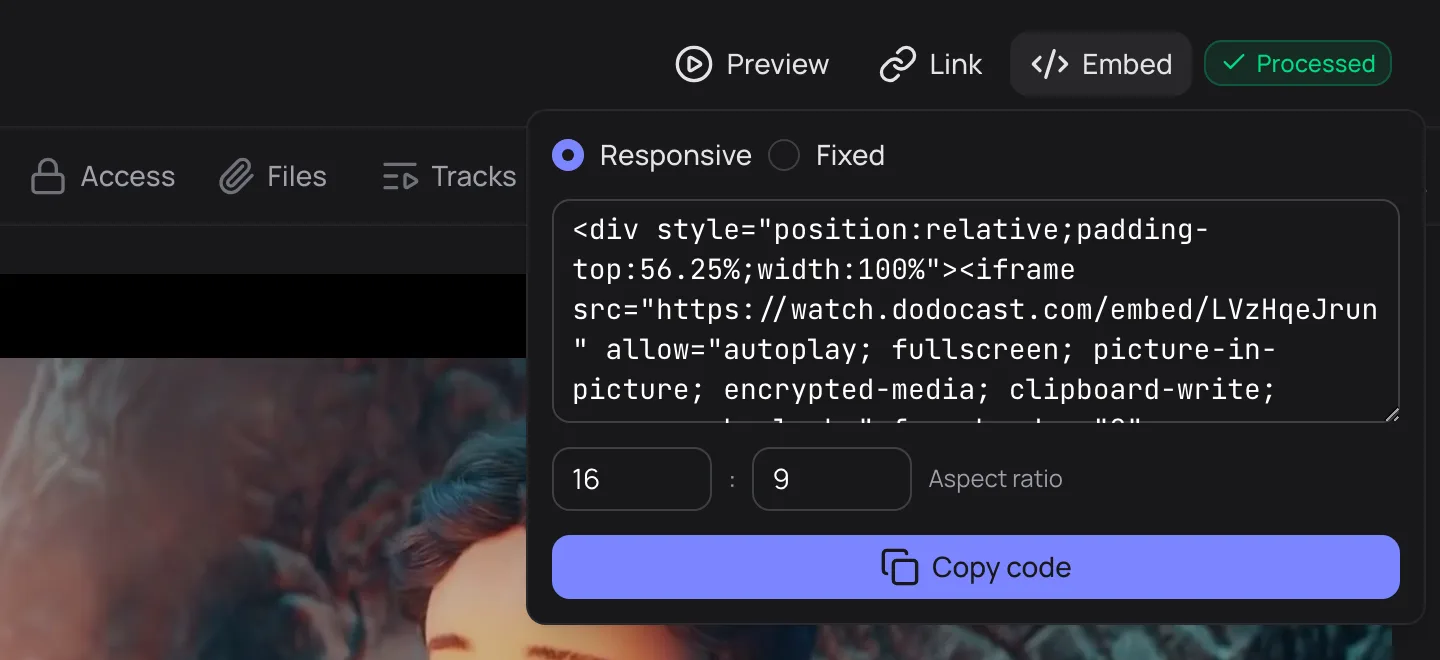
Responsive code (16:9) looks like this — the code in the URL is unique to each media item:
<div style="position:relative;padding-top:56.25%;width:100%">
  <iframe src="https://watch.dodocast.com/embed/code"
    allow="autoplay; fullscreen; picture-in-picture; encrypted-media; clipboard-write; screen-wake-lock;"
    frameborder="0" allowfullscreen
    style="position:absolute;width:100%;height:100%;top:0;left:0;"></iframe>
</div>
Limit
Where the player can be embedded is set on the Access tab, in the Embedding block: everywhere, nowhere or only on specified domains.
What's next
- Group videos into a playlist and pick a page layout — Cinema, Series or Course.
- Launch a 24/7 channel from your uploaded videos.
- Restrict access: signed links and allowed domains.
Updated: