Docs sections
Search⌘KScreens and TVs
You can put a 24/7 channel or a broadcast on any screen — through a browser or straight into the TV's player.
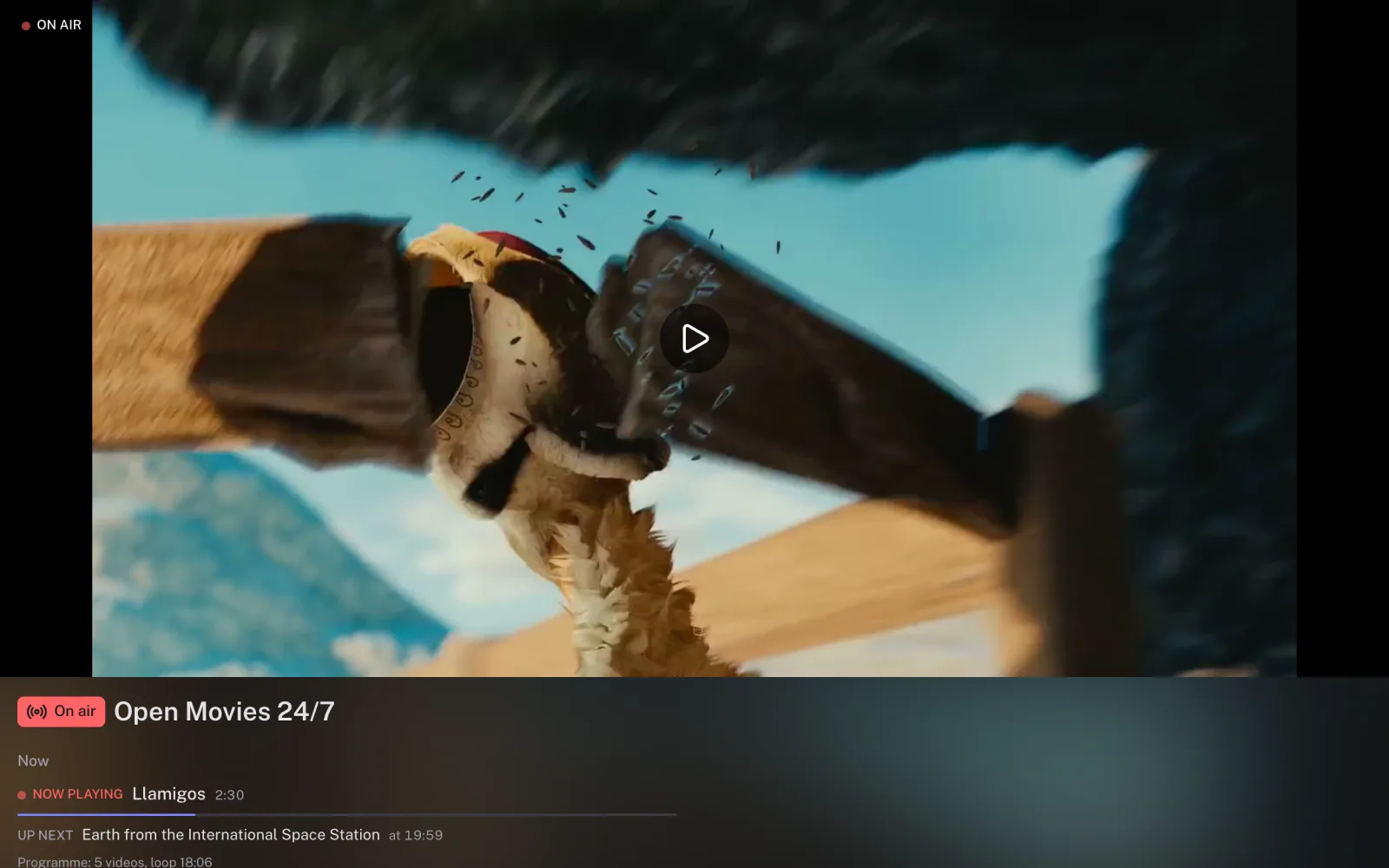
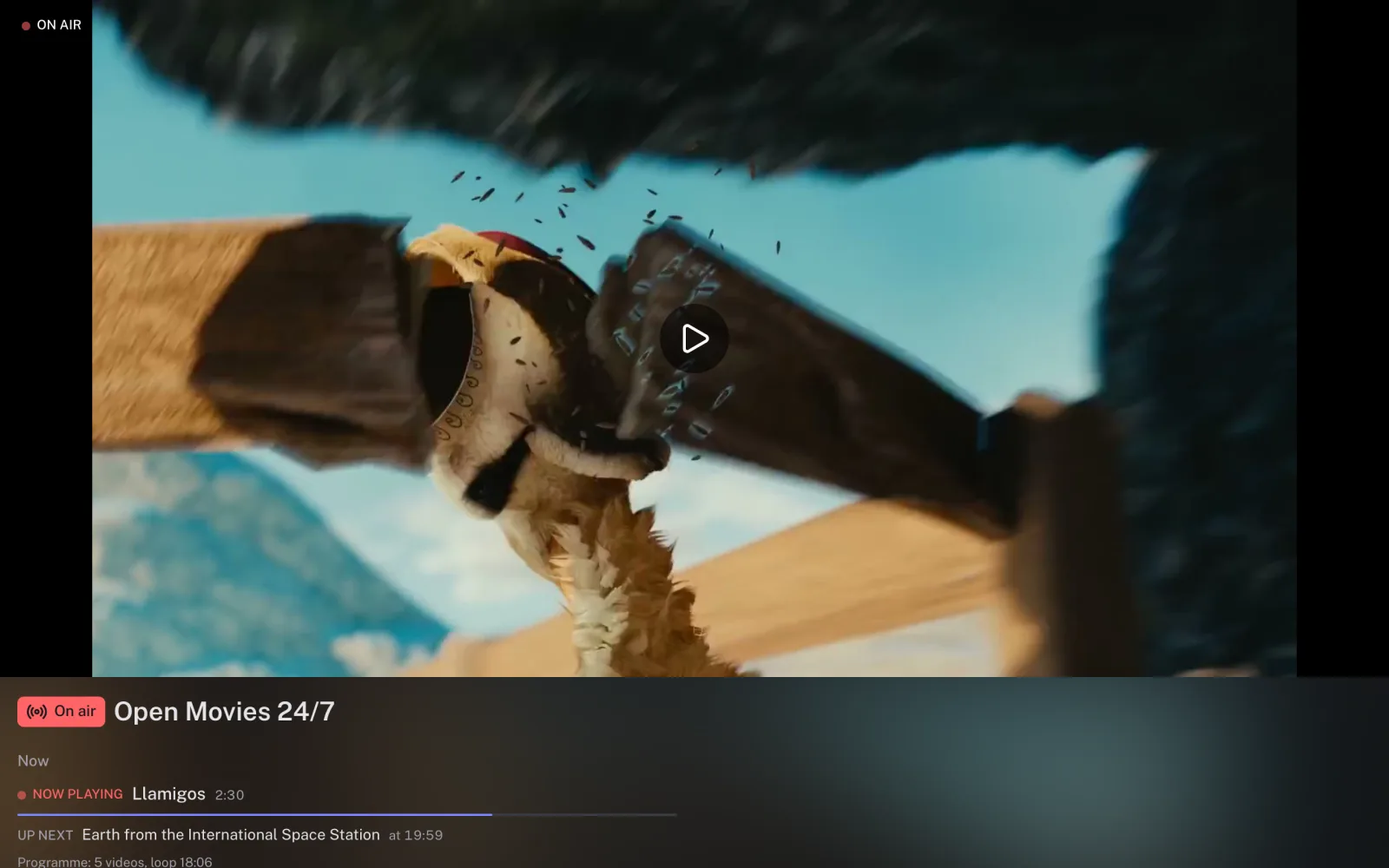
Through a browser
- Publish the channel or broadcast and copy its Link.
- Open it in a browser on the screen and switch the player to full screen.
- For an unattended screen, choose the Minimal — player only layout — only the video stays on the page.
The channel plays nonstop: the program loops and shows from the schedule air on time. In a browser, sound turns on with a tap — that is how browsers work.
Through a Smart TV or set-top box
Take a direct MPEG-TS link (for older TVs and IPTV) or an fMP4/CMAF link — see Stream link (HLS) — and add it to the TV's or set-top box's player. Requires the Pro or Business plan.
Updated: