Docs sections
Search⌘KReplace, move, delete
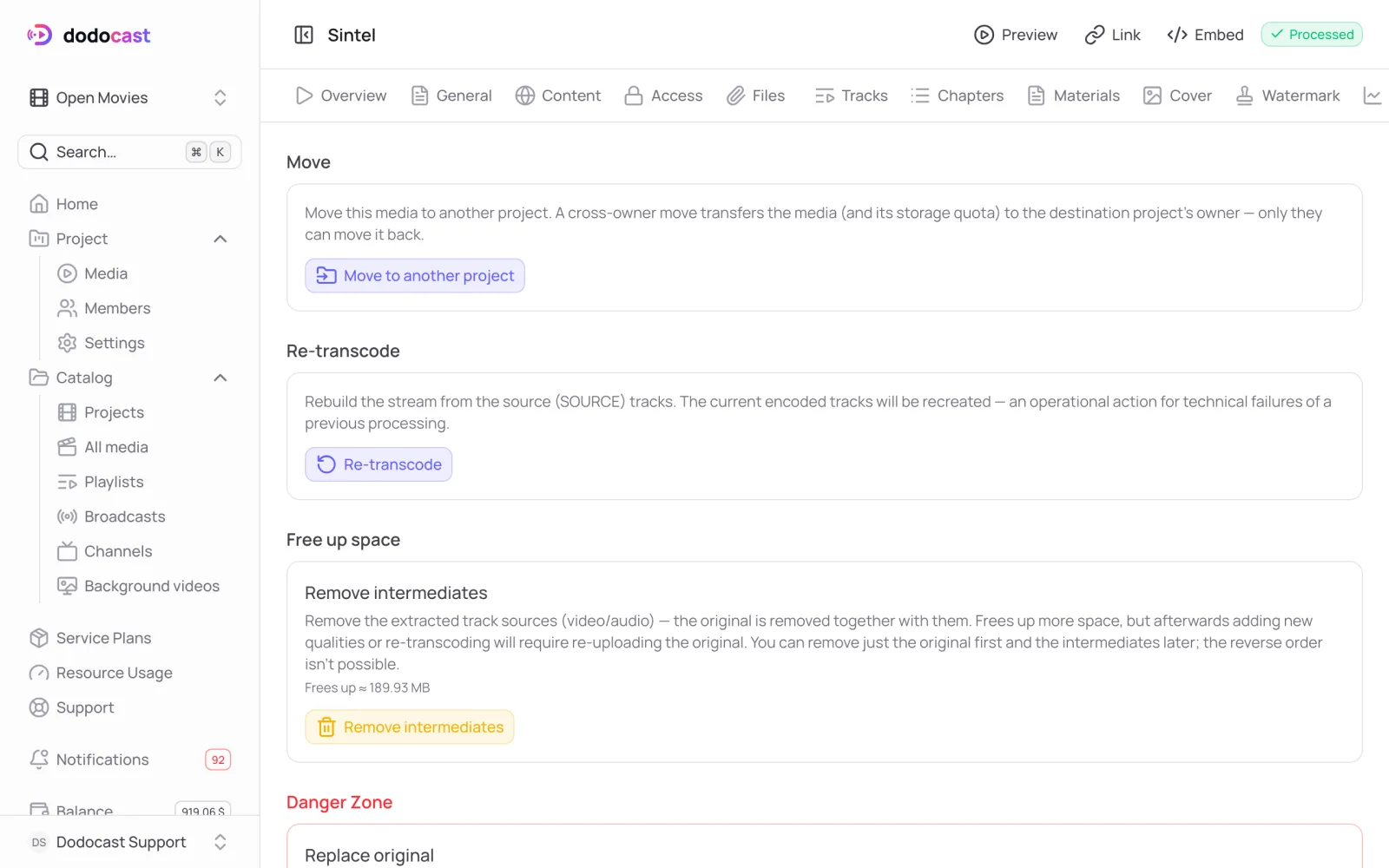
Everything that changes the video as a whole is on the Actions tab.
Move to another project
Move to another project moves the video with all its settings; its links stay the same.
Important
If the project belongs to another owner, the video's storage quota moves to them too, and only they can move the video back.
Re-transcode
Re-transcode rebuilds the stream from the source tracks: the current encoded tracks are recreated. Use it if the previous processing ended with an error. To re-transcode a single track, use the Tracks tab.
Free up space
Remove intermediates deletes the source tracks (and the original, if it's still there). The console shows how much space will be freed. After that, you can add new qualities or re-transcode only by uploading the original again.
Upload a new original
Replace original (in the Danger zone) resets the media: the original, source tracks, stream, and manifests are deleted, and only the record remains (title, description, settings). Then upload a new file on the Files tab. The media code and links stay the same, so you can replace a video without changing links on your sites.
Delete
Delete media permanently deletes the video and all its files. If the video was in a playlist or a channel program, check them after deleting it.
Updated: