Docs sections
Search⌘KPlayer on your site
Copy the code in the console and paste it into your page's HTML — the player appears on your site.
On this page
How to embed
- Open a video, playlist, broadcast or channel and click Embed at the top of the page.
- Choose Responsive (the player stretches to the width of its container; set the aspect ratio — 16 : 9, or 9 : 16 for vertical video) or Fixed (width and height in pixels).
Click Copy code and paste it into your page's HTML.
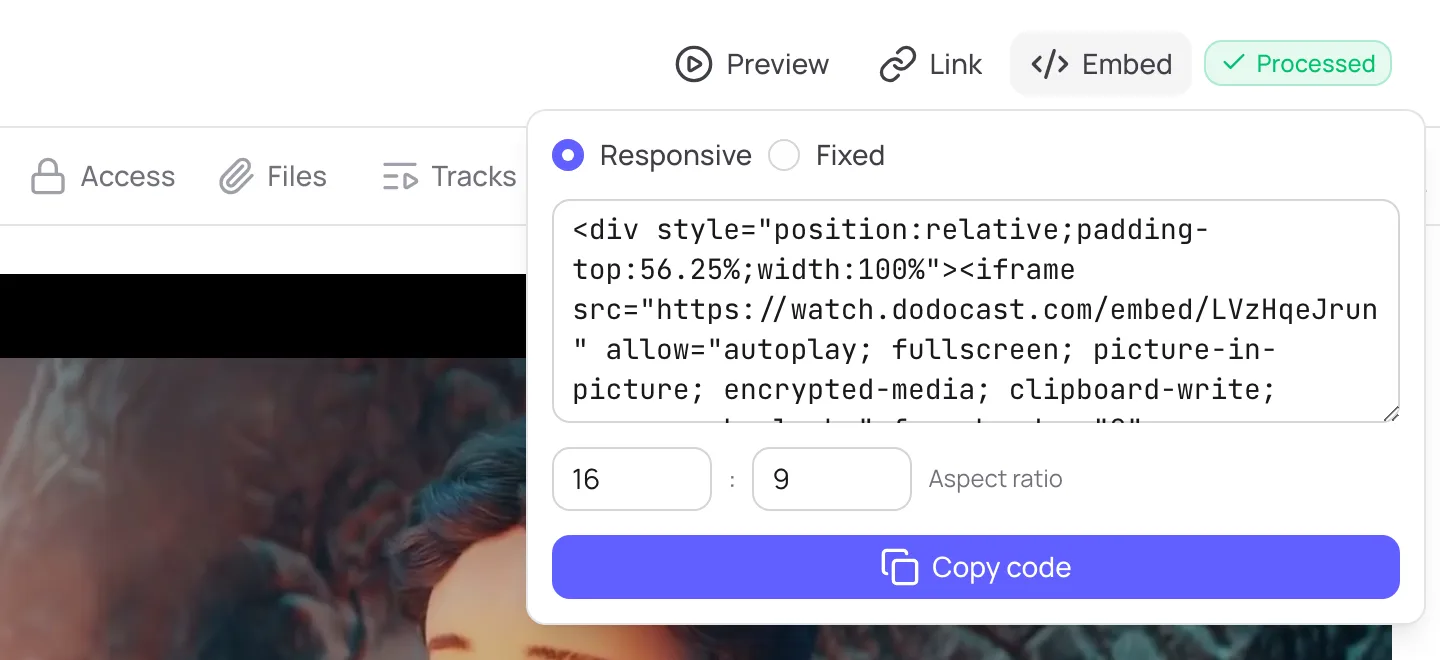
Player code. Video: Spring, © Blender Foundation, CC BY 4.0
html
<div style="position:relative;padding-top:56.25%;width:100%">
  <iframe src="https://watch.dodocast.com/embed/code"
    allow="autoplay; fullscreen; picture-in-picture; encrypted-media; clipboard-write; screen-wake-lock;"
    frameborder="0" allowfullscreen
    style="position:absolute;width:100%;height:100%;top:0;left:0;"></iframe>
</div>
Embed URLs: /embed/<code> — video, /embed/pl/<code> — playlist, /embed/live/<code> — broadcast, /embed/ch/<code> — channel. ?t=90 starts the video at second 90.
Where the player can appear
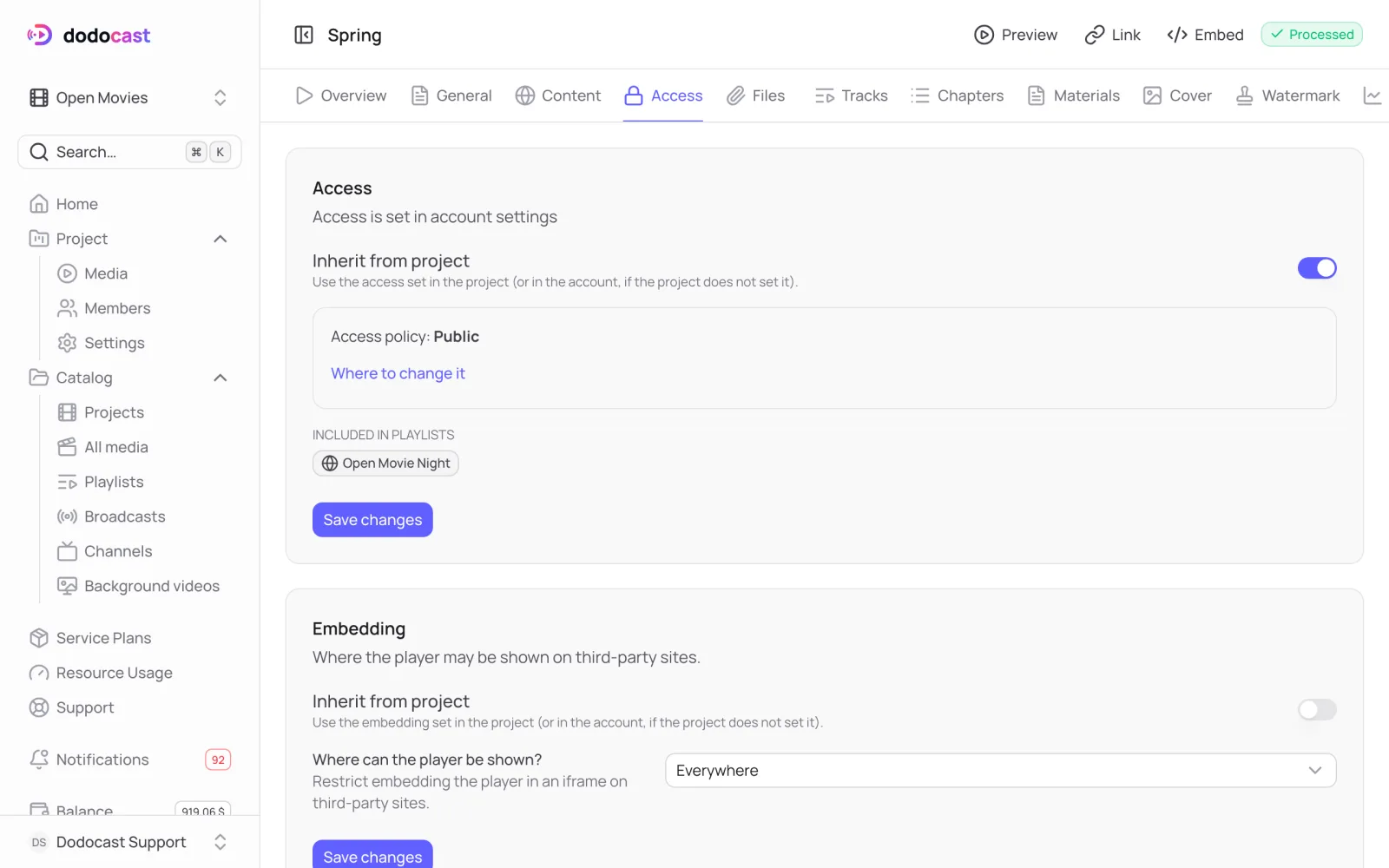
On the Access tab, in the Embedding block, under Where can the player be shown?:
- Everywhere — on any site;
- Nowhere — the player will not load on any third-party site;
- On specified domains — only on your sites, for example
example.comor*.example.com.
Note
Embedding works only while the item is published. The access policy (password, private link) also applies in the embedded player.
Updated: