Docs sections
Search⌘KCreate a broadcast
A broadcast airs one of your videos — right away or at a set time.
Files only
A broadcast airs a video you have uploaded. dodocast can't take a stream from a camera or encoder yet. Broadcasts per plan: Starter — 3, Pro — 10, Business — 50; each extra one is $5.
Steps
Go to Catalog → Broadcasts → Create broadcast and enter a name.
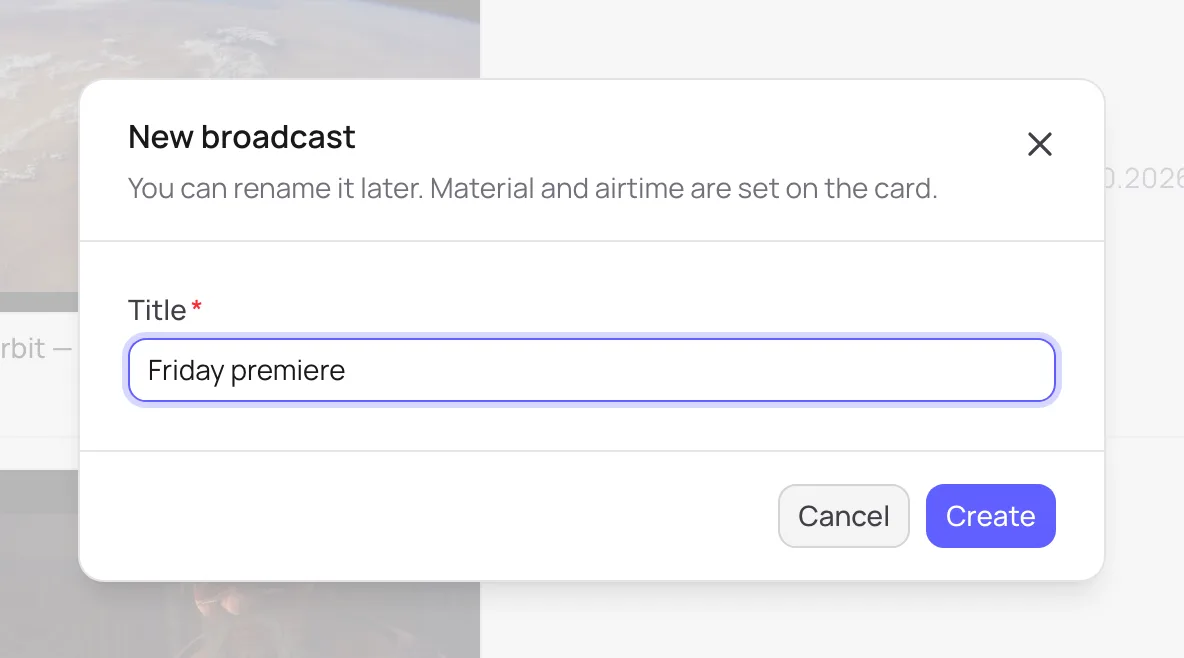
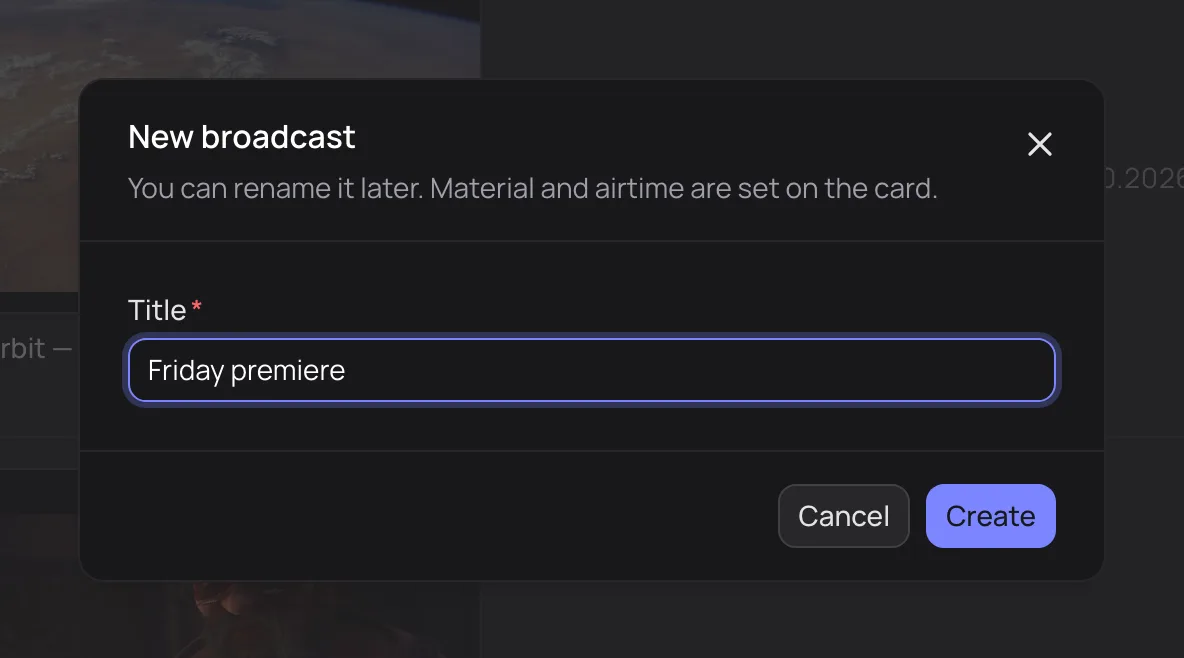
The source video and time are set on the broadcast page - On the Air tab, click Choose video: pick a project first, then one ready video.
Set the Air mode to Live or Premiere; turn on Loop and Keep recording if needed. Click Save changes.
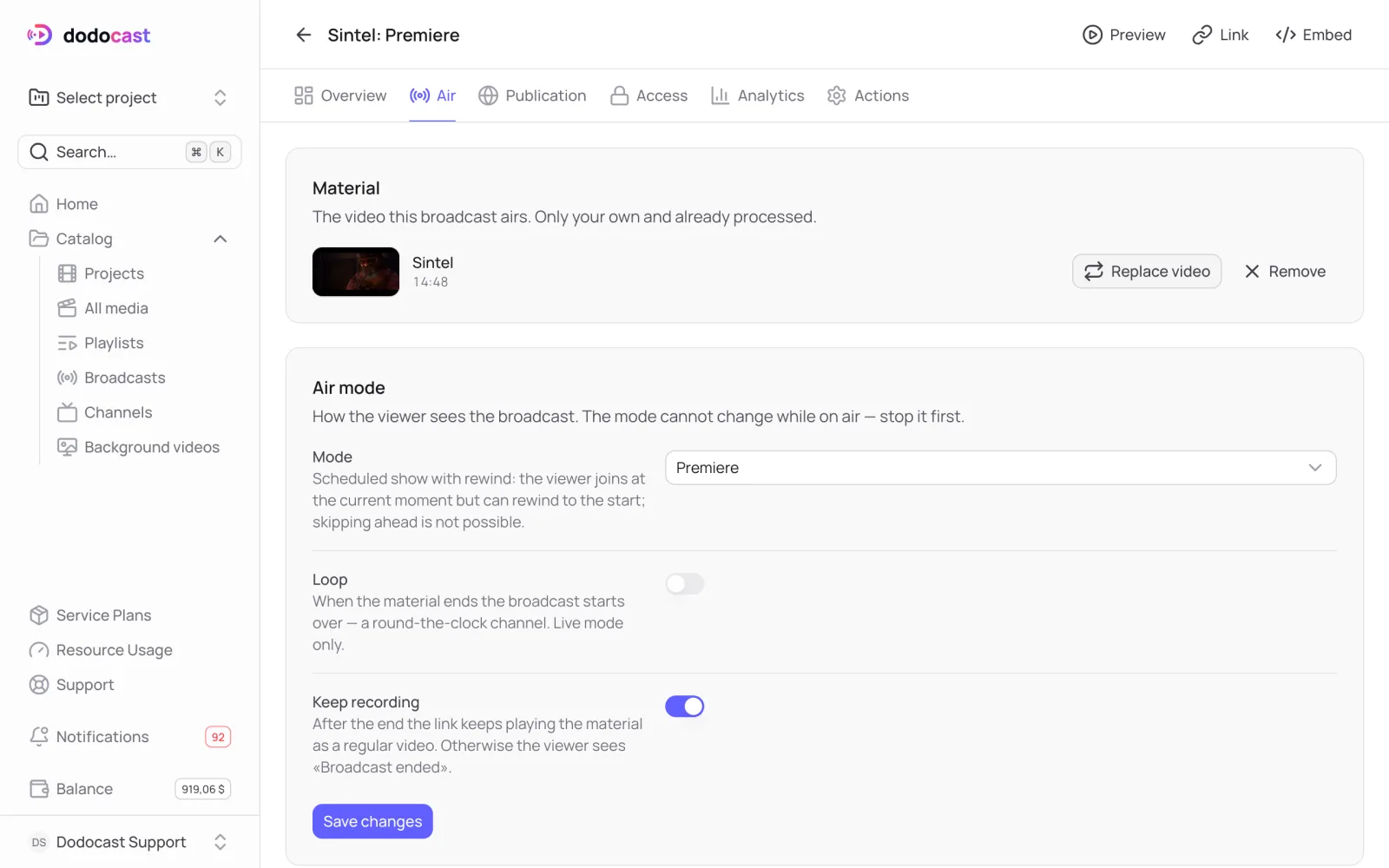
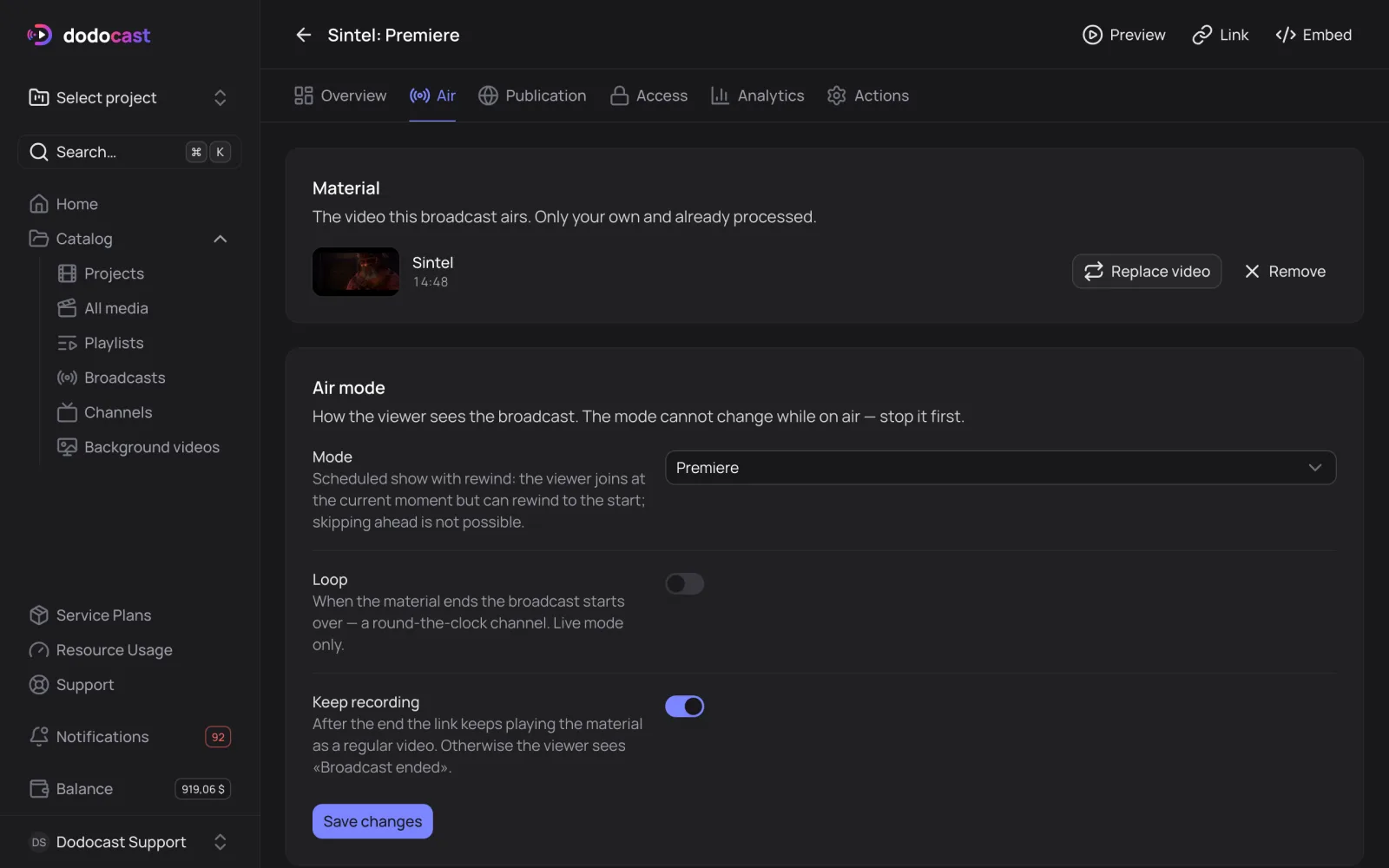
Source video and air mode. Video: Sintel, © Blender Foundation, CC BY 3.0 - On the Publication tab, turn on Published → Save changes.
- On Overview, click Go live now or Schedule it for a date and time (see Premiere).
States
| State | Meaning |
|---|---|
| Not started | draft: you can change the video and time |
| Scheduled | waiting to start; Overview shows the time left |
| On air | streaming; you can't change the video, mode or time now |
| Ended | finished; to run it again, click Go live now or set a new schedule |
Why it won't start
No media selected — cannot start. — choose a video. The media is still processing — cannot start. — wait for processing to finish.
Broadcast or channel? A broadcast is one video at a set time. For a continuous program of many videos plus scheduled shows, use a 24/7 channel.
Updated: