Docs sections
Search⌘KWatch page
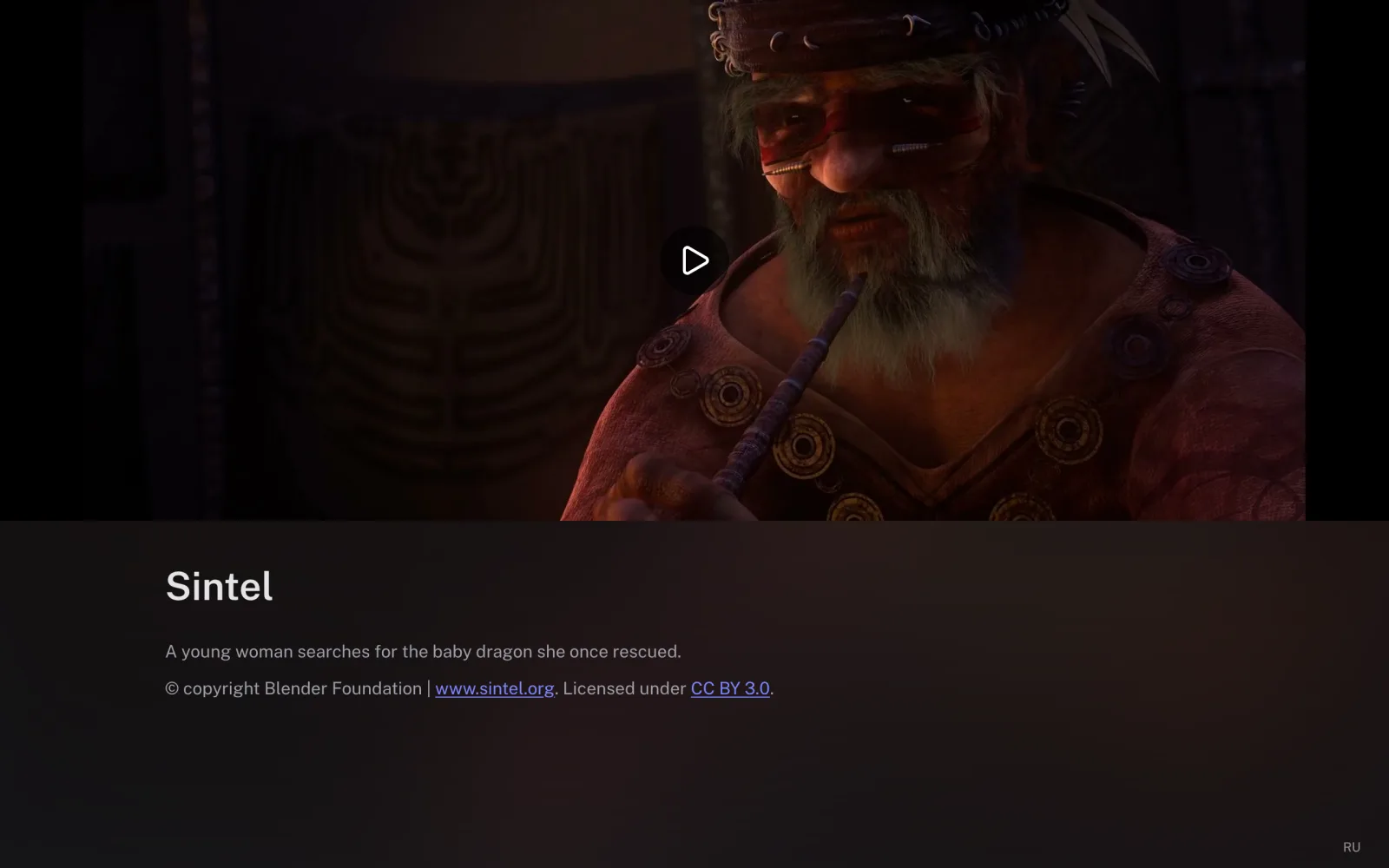
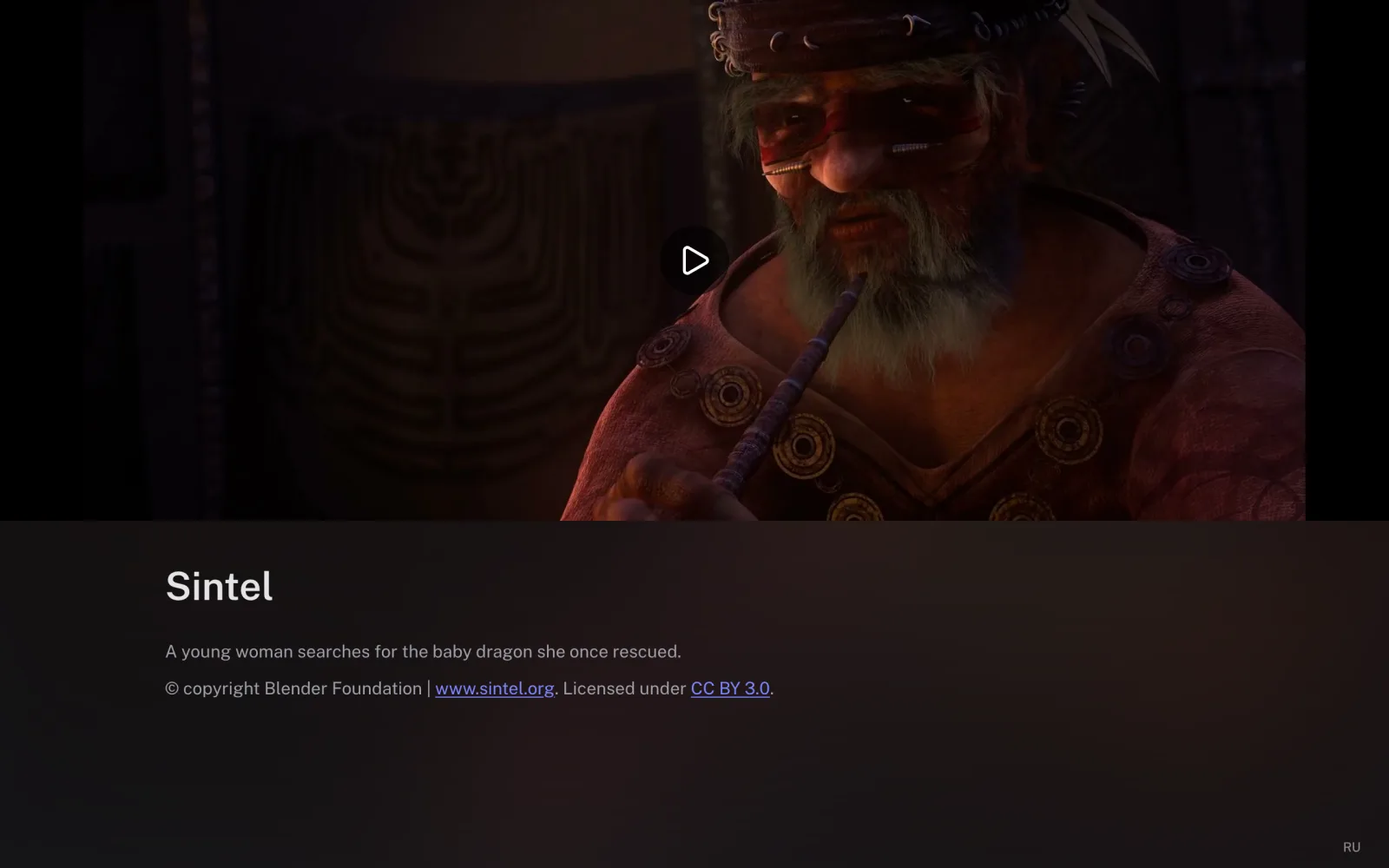
Every published video, playlist, broadcast and channel has its own page on watch.dodocast.com.
On this page
How to get the link
- Open a video, playlist, broadcast or channel in the console.
At the top of the page, click Link and copy the URL.
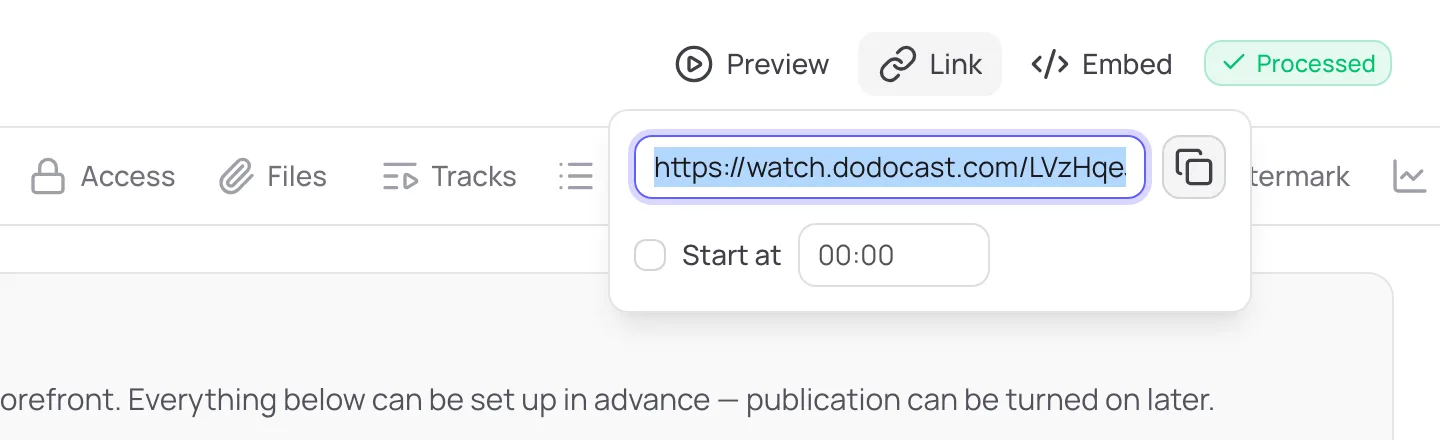
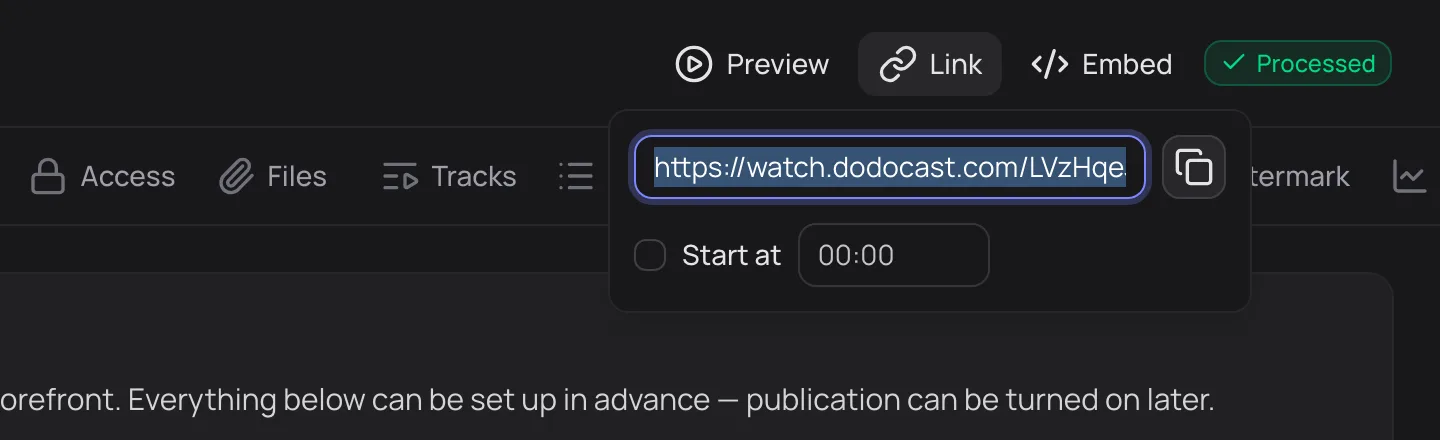
Link: the page URL and Start at - To open the video at a specific moment, check Start at and set the time —
?t=in seconds is added to the link.
Preview next to it opens the same page so you can check it before sending.
Note
The buttons are disabled until the item is published: playlists, broadcasts and channels are unpublished by default — publish them on the Publication or Content tab.
Page URLs
| Item | URL |
|---|---|
| Video | https://watch.dodocast.com/<code> |
| Playlist | https://watch.dodocast.com/pl/<code> |
| Broadcast | https://watch.dodocast.com/live/<code> |
| 24/7 channel | https://watch.dodocast.com/ch/<code> |
<code> is 10 characters; you can see it in the console next to the name. With Private link access, a secret is added to the URL: …/<code>/<secret> — the page will not open without it. You can reissue the secret with the Regenerate button: the old link stops working.
What the viewer sees
- a player with adaptive quality, subtitles, audio tracks and chapters;
- the title and description (Markdown: headings, lists, links, tables);
- for a playlist — a list, an episode strip or a course table of contents, depending on the page layout;
- light and dark theme switches and an interface language switch (English and Russian).
Updated: