Docs sections
Search⌘KWhat is dodocast
Video hosting, your own watch pages, 24/7 channels and broadcasts from uploaded videos — all in one console.
What you can do
| Task | What to use | Guide |
|---|---|---|
| Store video and show it on your site | media + embedded player | Embedding |
| Give viewers a polished watch page | watch page and layouts | Watch page |
| Build a course, a series or a cinema page | playlist with a layout | Playlists |
| Run scheduled broadcasts from files | broadcast | Broadcasts |
| Run a 24/7 channel | 24/7 channel with a program and EPG | 24/7 channels |
| Add a video background to your site | background video | Background videos |
| Restrict access | password, private link, domains, signed links | Security |
Live input
dodocast does not yet accept a stream from a camera or encoder. Broadcasts and channels play videos you have uploaded.
How the console is organized
The menu is on the left. Catalog holds everything you create: Projects, All media, Playlists, Broadcasts, Channels, Background videos. At the bottom are Service Plans, Resource Usage, your balance and Support.
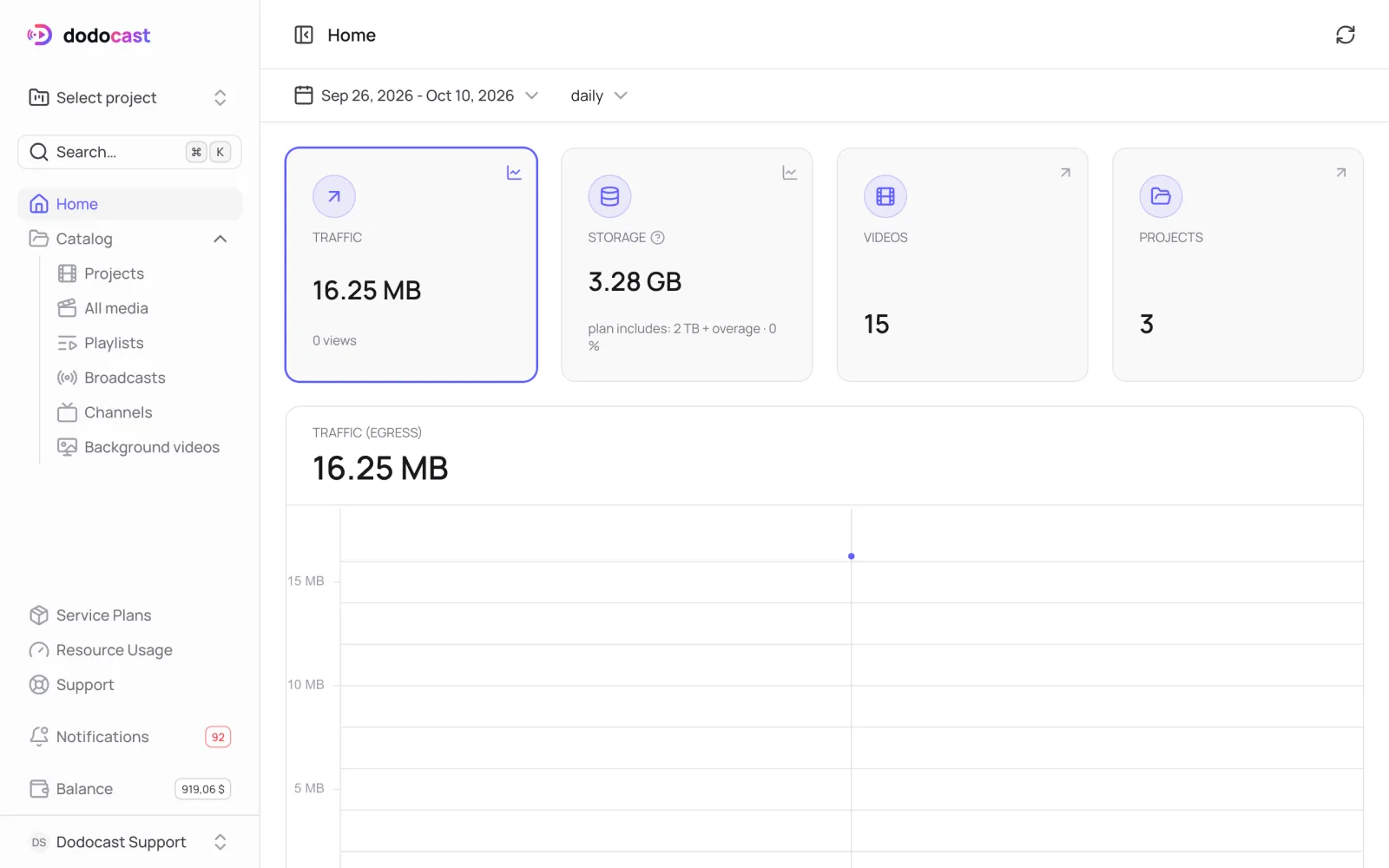
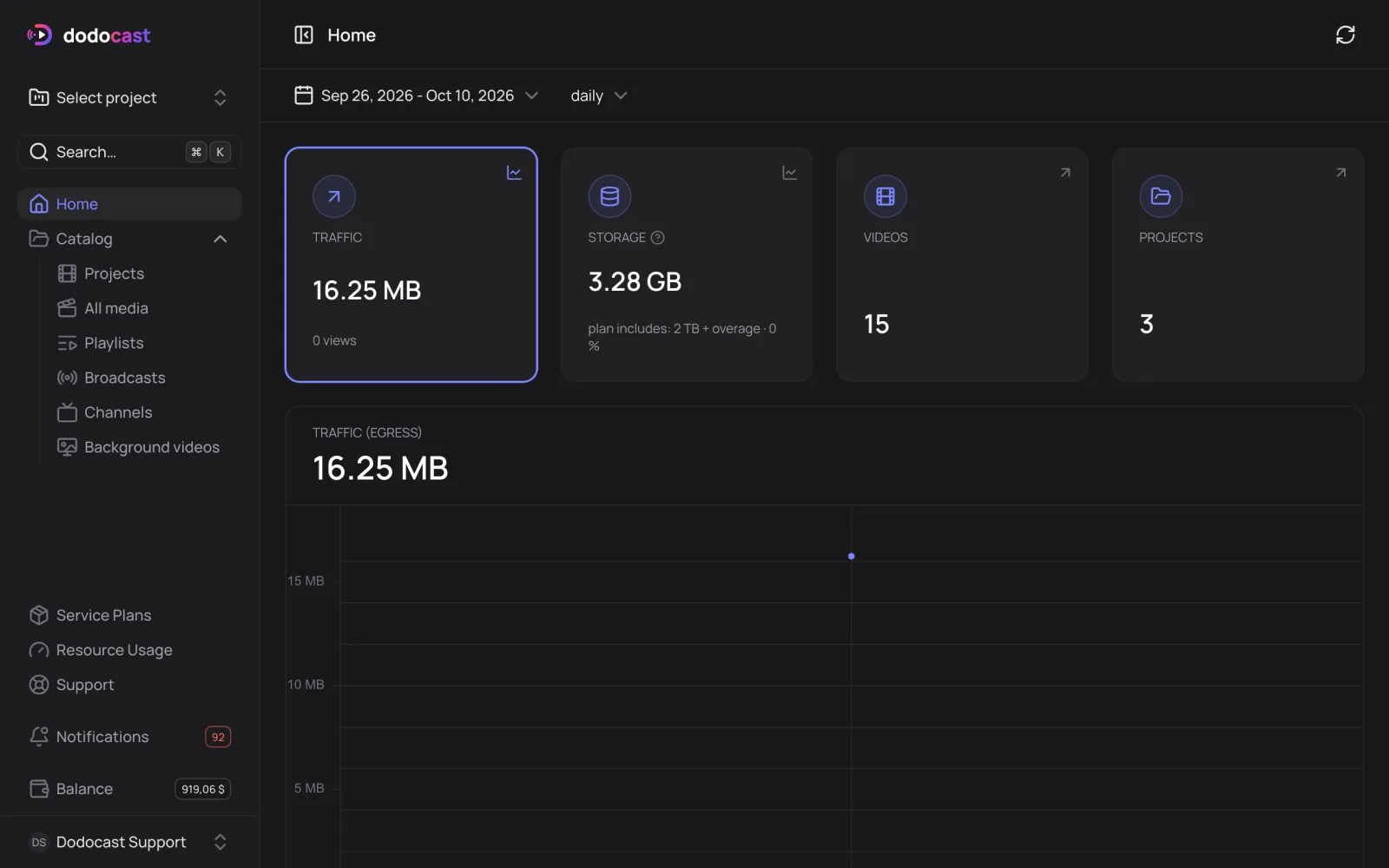
Every media item, playlist, broadcast and channel has tabs: what to show (Content), who can watch (Access), where it is published and how it performs (Analytics). You can set access and appearance once for a project or the account — media inherit them.
Where to start
- Quickstart — your first video and a link to it in five minutes.
- Key concepts — project, media, playlist, broadcast, channel.
- Plans and limits — what a plan includes and what counts as overage.
Updated: